
Setting up Student Selection Forms
Setting up a selection form
- Go to Electives > Subject selection... > Set up student forms
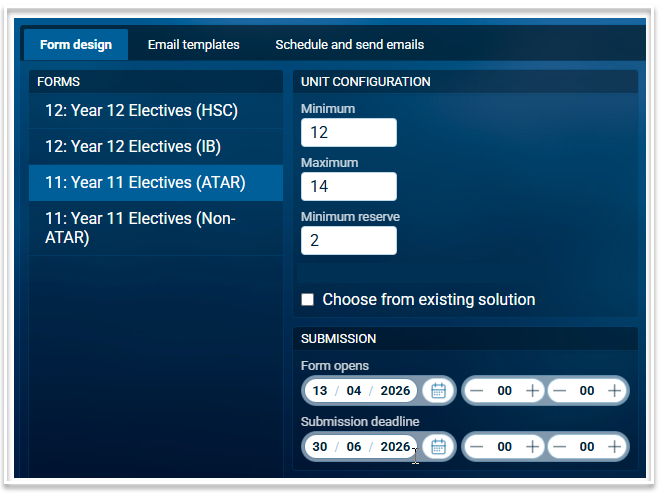
- There are three tabs available; Form design, Email templates and Schedule and send emails. Use the Form design tab to set up the selection form.
- From the list in the Forms section on the left hand side, select the required year level dataset and stream, if applicable.
- In the Unit configuration section, set the minimum and maximum number of units a student can select and indicate the minimum number of reserve units a students must select.
- There is a checkbox in this section which is used for a special selection option called Choose from existing solution which is explained in more detail below.
- In the Submission section, set the date and time that the form will open, and set the date and time of the submission deadline.
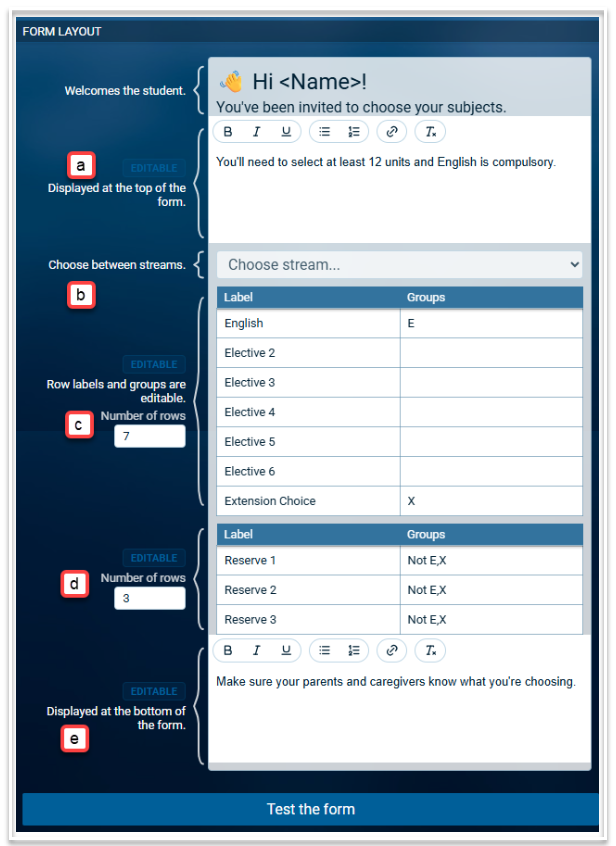
- The Form Layout section contains several setup options:
a) Header text. This is an editable text field with formatting options including bulleted or numbered lists and the ability to insert a link. The information entered here will be displayed at the top of the form.
b) Choose stream. If using multiple streams this section will be visible when a student logs in. It will display a drop down list on the form containing the available streams for a student to select. Students will not see this option if there are no streams or if they have been restricted to one stream only. This section is not editable.
c) Main Selections. Enter the number of rows required. This should allow the maximum number of units to be selected. For example, if 12 units is the maximum, there should be enough rows to allow a student to choose subjects totalling 12 units. For each row, enter the label required. The default is Elective 1, Elective 2 etc but these can be changed to suit. In the Groups column, add the group letter or number for the subjects that are to included in the choices. The group label is the one entered in the 'Groups' column in the Offered Courses table. For example, if English is compulsory, you may wish to label the first row 'English' and enter 'E' in the groups column, having added E to the groups column in the Offered courses table for the relevant English subjects. Leaving the Groups column blank will include all offered courses in the selection list. If a group of subjects is to be excluded from the list, enter 'Not' followed by the group letter of those subjects. For example, you would put Not E in each of the reserve rows to exclude English as a reserve choice.
d) Reserve selections. Enter the number of rows required. This should be enough to allow the minimum number of reserve units to be selected but can be more. Change the labels from Reserve 1 etc if required and enter information in the Groups column as explained above.
e) Footer text. This is an editable text field with formatting options including bulleted or numbered lists and the ability to insert a link. The information entered here will be displayed at the bottom of the form.
Testing the Form
Once the setup of the form is complete, select Test the Form to open a sample of the form. Use this to check that
- the details entered are correct
- the drop down lists for each choice contain the correct subjects
- any rules entered in the Selection Rules table under Offered Courses work as expected.
Choose from Existing Solution
This feature allows a selection form to be created based on an existing Lines solution. If a set of lines has been constructed from a first round selection, or manually due to limited resources, a form using those lines can be created by selecting Choose from existing solution. The subjects that appear in each drop down for selection will be the subjects on each line in the Lines Solution screen.
This feature works on a first come, first served basis, whereby a class on a line becomes unavailable for selection once the maximum number of students have selected it. Where there are multiple classes of the one course on a line, the course remains available until all classes have reached the maximum number. This prevents classes on a line becoming over subscribed. The maximum number of students is entered in either Data entry > Courses or Electives > Offered Courses. Updating the value in one table automatically updates it in the other.
The selection form for this method does not use labels or groups, as this information is drawn from the line solution, and it will not have reserve choices. The top and bottom text areas are editable and will appear on the form, however, anything edited in the main and reserve areas will be ignored.
Once students make their selections and submit their form, the choices are automatically added to the Student results table. There is no need to visit the Student requests page as this is not required for this type of selection. Use Electives > Subject selection > Live consultation to make changes to a student's selection. Live consultation can be used at any time, even after a form is closed.