
The Staffing Screen
What am I looking at?
This screen shows which classes are assigned to which teachers. Normally you view one faculty at a time, selected via the toolbar dropdown, but you can also select all faculties at once.
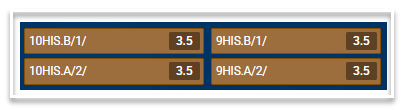
Each rectangular object represents a class. You see the load-size of the class in a shaded rectangle. This is usually equal to 'periods-per-cycle' but can differ from 'periods-per-cycle'. The load size is set in Data Entry > Courses and if there is a figure in brackets in the periods-per-cycle column, it means it differs from periods-per-cycle. For example, if the entry in the periods-per-cycle column for a course is 8(7), the periods per cycle is 8 but the load size is only 7. It is the 7 which will display as the load for classes of that course in the Staffing screen. The load sizes can be fractional. In fact, with rotated classes, they usually are fractional, e.g. a 7-period class which runs on only one semester will typically have a load-size of 3.5.
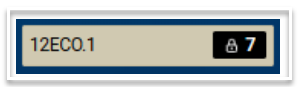
The load rectangle is black if the teacher is hardcoded to this class or is the only teacher in the teacher set for that course. When a load rectangle is black, it will also contain a padlock to indicate that this is the only teacher currently able to take that class.
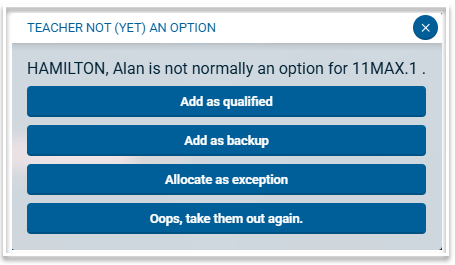
You can move a padlocked class to another teacher but you will need to specify what level that teacher is to be given by selecting one of these options:
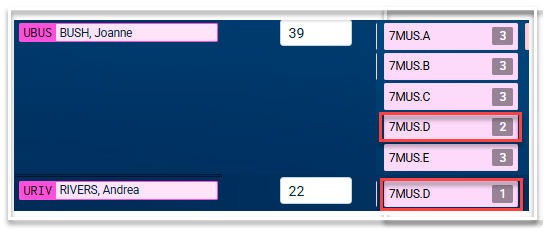
A class can appear twice on this screen if it's split between two teachers. In that case the number in the shaded load rectangle will show how much load each teacher has respectively taken. In the example below, 7MUS.D is split between UBUS (2 periods) and URIV (1 period).
A "Ring-in" is defined as a teacher outside the faculty who could take at least one of the faculty's classes. These can be displayed or hidden, as per the toolbar checkbox. Ring-ins have a different background shading to faculty teachers. Classes from other faculties have an orange shaded load rectangle.
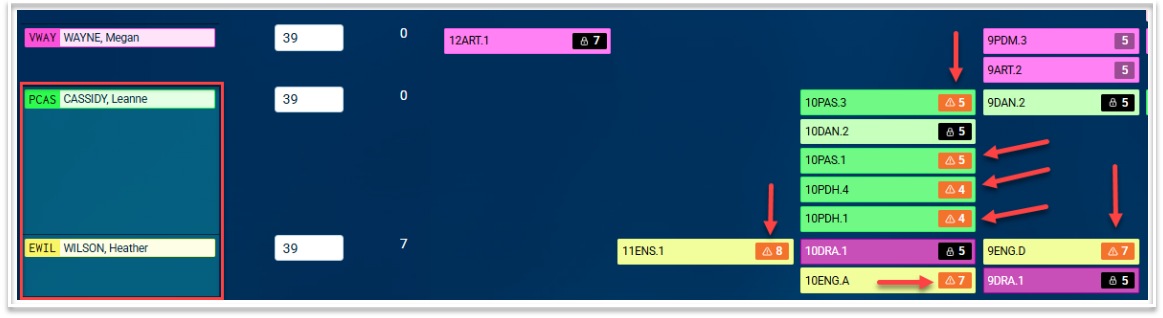
Each teacher should be allocated a set of classes whose loads add up to be less than or equal to their 'MaxLoad' figure, although we do permit an overload of up to 2 or whatever figure is set in the Data Entry > Setup > Settings screen. You set the 'MaxLoad' figure for each teacher in Data Entry > Teachers.
How do I use this screen?
The classes can be manually moved between teachers using drag-n-drop.
You can change a teacher's "MaxLoad" in this screen, however, that's all you can change of the teacher fields.
Assigning staff automatically
Using the [Assign] button, staff can be allocated to classes automatically, based on their maximum load, the classes and subjects that they are eligible to teach, their status as a preferred or fallback options and any relevant timetable factors.
When a single faculty is selected in the toolbar, Atlantis will only staff that faculty.
To staff all faculties, make sure "all faculties" is selected from the toolbar dropdown.
Splitting a class between two or more teachers
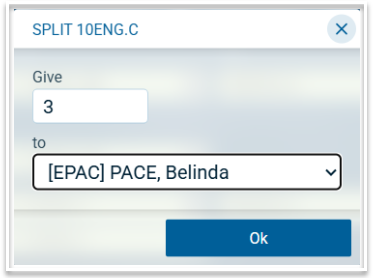
To split a class between two teachers in this screen, firstly assign the full load of the class to one teacher. Then right click on the class to open the following modal: Select the number of periods to hand over and then select the teacher in the 'to' field. Note that only teachers in the specific teacher set will be displayed. Select Ok to make the split.
Checking Teacher and Class Loads
The staffing screen displays the maximum load assigned to each teacher, the load remaining for each teacher and the load value assigned to each class, allowance or duty for each teacher.
If you believe that the load remaining is not correct for a teacher, here are a few things you can check.
- Are the values assigned to each class correct? If not, there is a chance that the Periods column in the Classes table has been used to change the value of the course load. Go to Data entry > Classes and display the optional column called Periods. If the value in that column for the class in question is preceded by 'inherit:', the value has been inherited from the Courses table. However, if there is a value in this column that is not preceded by 'inherit:', the value has been changed from the course value and this may be causing the teacher load to be incorrect.
- Should the load assigned to a course be different to the load assigned to the teacher? For example, Roll Call may be scheduled for 10 periods but the load assigned to a teacher for Roll Call may be only be 2 periods. The correct syntax for this would be 10(2), or 0+10(2) if roll call is in an offline period, where the 10 is the course load value and the (2) is the load assigned to the teacher. Check in Data entry > Courses > #Periods and Data entry > Classes > Periods to make sure the correct syntax has been used.
- Has the correct value for a teacher's allowance been assigned? If not, this can be changed in Data entry > Allowances.
- Are duties meant to count towards a teacher's load? If duties are appearing with a load value, when they are not meant to count, or if they are appearing as 0 load but should be contributing to the teacher's load, go to Data entry > Set up > Settings and check if the option 'Duties count towards load' has been enabled/disabled.