
The Mosaic Screen
The Mosaic Screeen
What am I looking at?
- Brown triangle: Teacher clash
- Brown circle: Teacher latent clash (meaning we can't satisfy all classes in the column with the teachers available)
- Yellow triangle: Room clash
- Yellow circle: Room latent clash
- Blue square: Bad spread problem
- Purple star: Structure violation (shouldn't occur but if it does, fix this first.)
How do I put classes on there?
Every year level structure has its own set of actions:
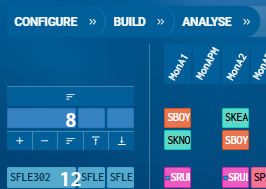
In order of appearance, left to right:




How do I make changes?
When making manual changes, every change is a swap of classes between two columns. Each swap must preserve the 'structure' of the timetable, meaning no swap will be allowed which causes a student-body clash (i.e. which violates the structure as defined in the "DataEntry > Structure" screen).
To make a manual change, use the arrow keys or mouse to navigate to one of the lessons in question. Hit Space bar to select it. You can hit the Space bar several times to select either the minimal lesson, or the group of lessons vertically linked to it, or other lessons vertically linked via higher-level structures. The lessons in question will be shaded in grey.
Then navigate to the column you which to move them to, and hit the Space bar again. Those lessons will move, and they will displace other lessons which will now go to the original column in a swap. (You may find that more lessons than the grey-shaded ones will be swapped - it's all done to preserve 'structure'). Note - for the special case where you are wanting to make a manual move of a class or line into an empty period, use the keyboard and not the mouse.
To change the teacher on a class, hit S on the keyboard (S for 'Staffing').
To pin or unpin a class, (meaning fixing it in place so it can't move), hit P on the keyboard. You can also pin classes using the toolbar button which will open a dialog box.
To remove a lesson(s), (meaning it goes to the unassigned area), click on it or arrow-key into it, and hit Del on the keyboard.
Using the algorithms
- Fix: This algorithm focuses on all clashes and tries to fix them by moving the minimum number of lessons around.
- Improve: This algorithm focuses on soft constraint problems and tries to make improvements. This primarily refers to 'spread' problems ('Spread' problems refers to problems such as getting a double-period when you didn't want it, or not getting it when you needed it, or 3-on-a-day, etc.).
- Staff: Assign staff to classes or rearrange the current staffing to improve the situation according to scoring metrics.
- Assign periods: By default, cyclical lessons are placed into columns but columns are not labelled with periods. At some point, usually early in the process but after the senior timetables have been placed into columns, you want to label columns with periods. No spread scores can be calculated until this is done.
The score box
All algorithms aim to reduce the overall solution score as much as possible. This box on the toolbar displays the current overall solution score. This score is made up of a very large number of components/metrics, added together. You can get details on the scoring formula by clicking on this number.
If the algorithms seem to prefer arrangements which are in your opinion worse outcomes, then consideration needs to be given to the scoring formula. Typically the weights of the component metrics need to be adjusted. You can do this in "DataEntry > Setup > Settings".