
Creating the Study Roster
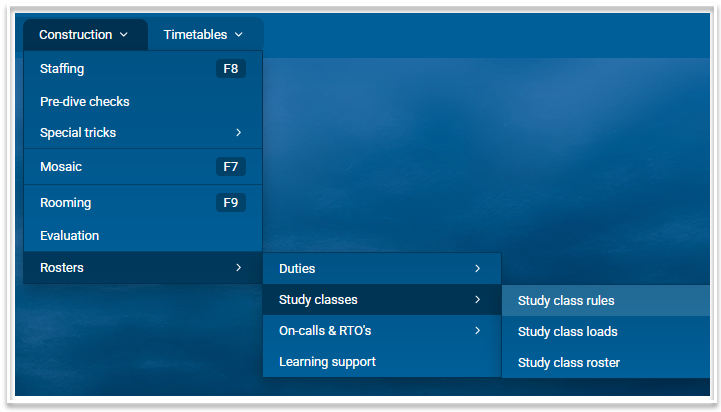
The Study Roster is located under Construction > Rosters. It has 3 related screens: Study class rules, Study class loads and Study class roster.
Study Class Rules
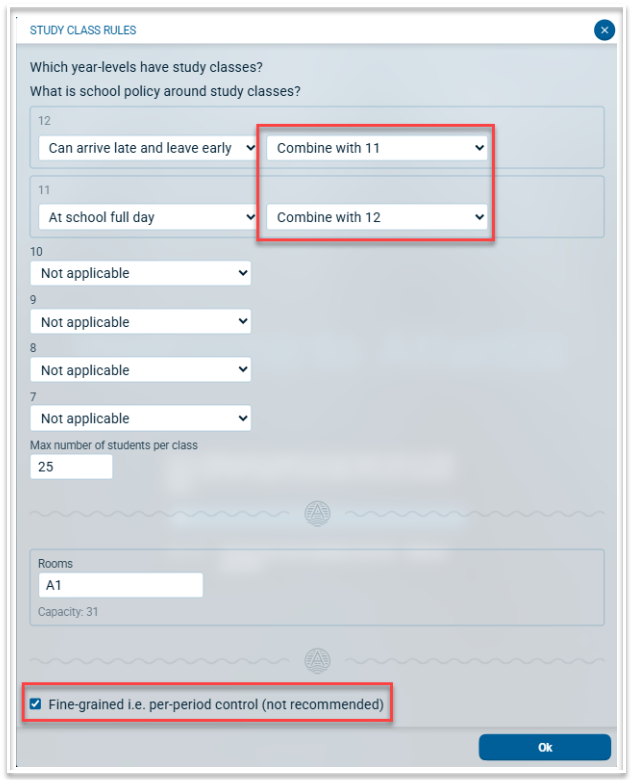
To initiate a study roster, there needs to be at least one year level selected to have studies. This is done via the Study Class rules modal. To set up the rules for each year level, go to Construction > Rosters > Study classes > Study class rules. The following will be displayed. Each year level drop down list will have the displayed rules.
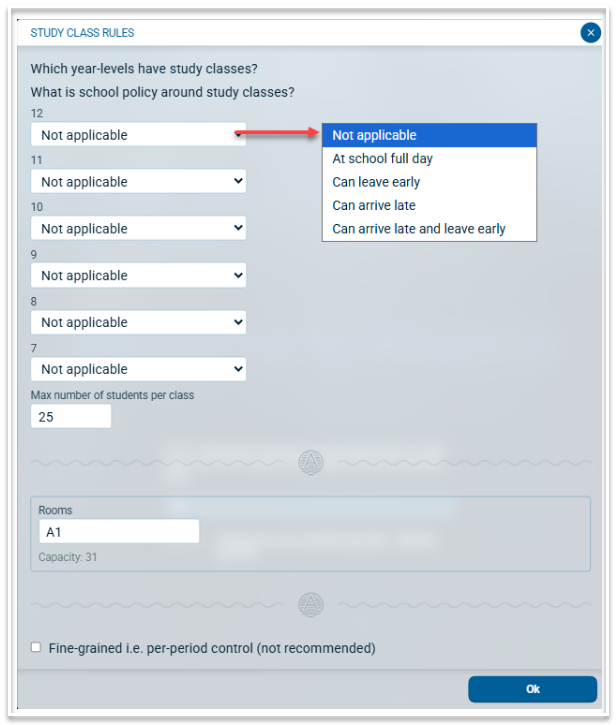
For each year level that requires studies, select one of the rules:
- At school full day. This will add study classes to all teaching periods where there are students without a lesson. It does not add study classes to out-of-timetable or break periods.
- Can leave early. This will add study classes to all but the last teaching period of the day where there are students without a lesson. It does not add study classes to out-of-timetable or break periods.
- Can arrive late. This will add study classes to all but the first teaching period of the day where there are students without a lesson. It does not add study classes to out-of-timetable or break periods.
- Can arrive late and leave early. This will add study classes to the teaching periods between the first and last teaching periods of the day. It does not add study classes to out-of-timetable or break periods.
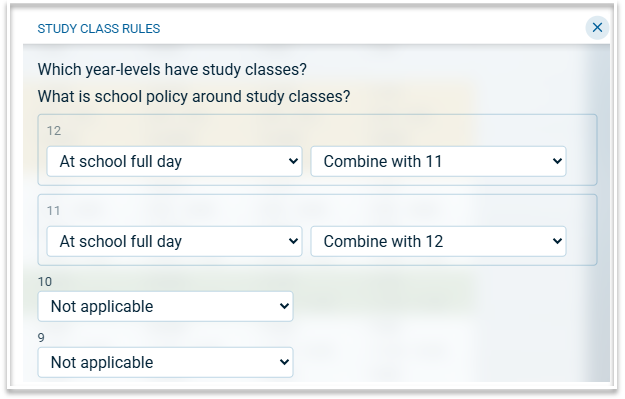
When more than one year level is assigned a rule, the option to combine year levels will be displayed. In the following example, years 11 and 12 studies will be combined.
Set the maximum number of students per study class. Where there are more than the maximum number of students without a lesson in a period, two or more study classes will be created.
In which rooms should the study classes be roomed? Add the room set for studies, or leave blank if all available rooms can be used. The Study classes will appear for rooming under the 'NoFaculty' faculty in the Construction > Rooming screen.
Study Class Loads
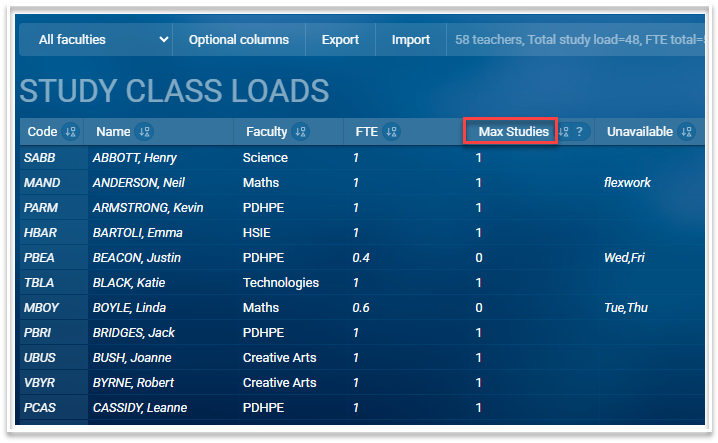
Go to Construction > Rosters > Study Classes > Study class loads to specify how many study classes each teacher can be assigned. This is done via the Max Studies column.
Study Class Roster
To complete the staffing of the roster, go to Construction > Rosters > Study Classes > Study class roster. The studies will be displayed in the required periods according to the rule set for each year level. Teachers who have a study class load will appear below the roster.
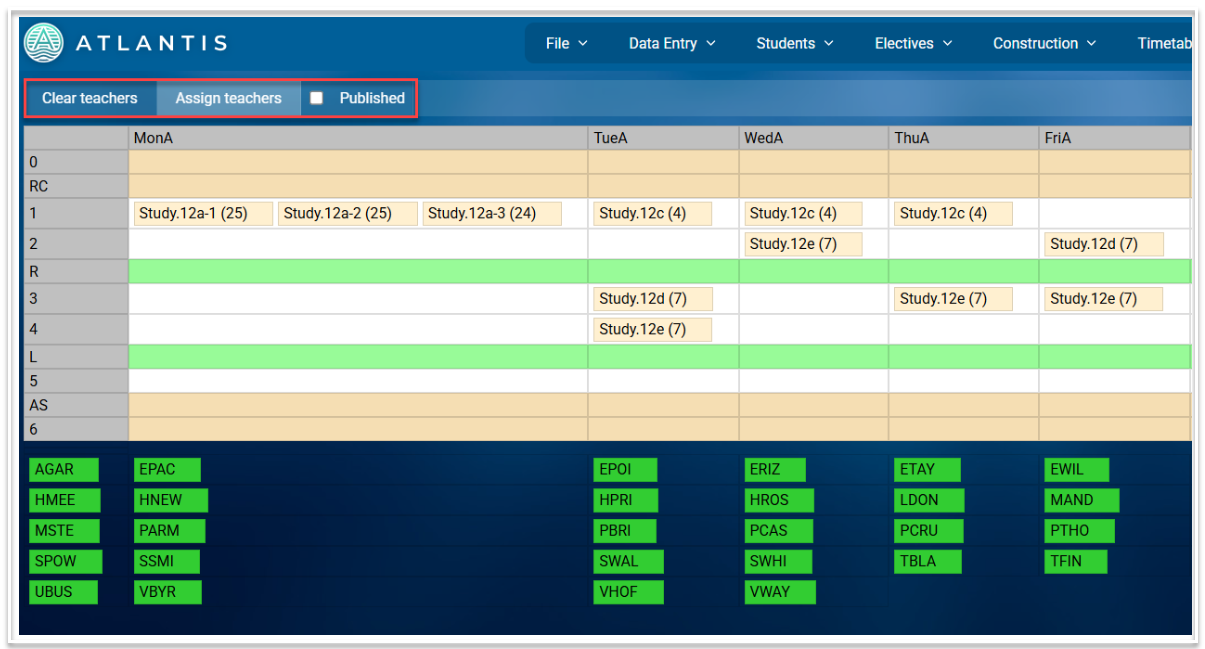
Teachers can be assigned manually by dragging and dropping their codes onto the study classes. An orange triangle will appear when dragging a teacher, indicating where clashes for that teacher will occur. Once a teacher has been assigned their maximum number of studies, their name will no longer be displayed below the roster.
To assign teachers automatically, select the 'Assign teachers' button.
To clear all assigned teachers select the 'Clear teachers' button
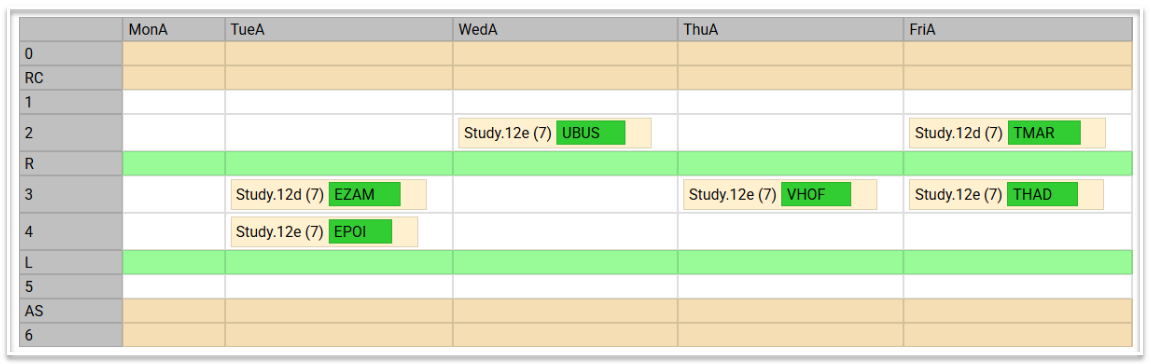
Here is an example of a roster with teachers assigned.
Fine-grained control
When manual control over the membership of each study class is required, follow these steps when setting up.
- In Study Class Rules, tick the box titled "Fine-grained i.e. per-period control"
- Ensure you have combined the year levels to be included.
- Select Ok
- The study classes are now labelled according to the period in which they are scheduled, for example, Study.12/11MonA2-1
- The maximum number of students per class specified in Study Class Rules will be used initially to create the required number of study classes per period, however, manual control over the number of classes scheduled is possible.
- To increase or decrease the number of study classes in a particular period, click the icon beside one of the study classes in that period. The following options will be displayed.
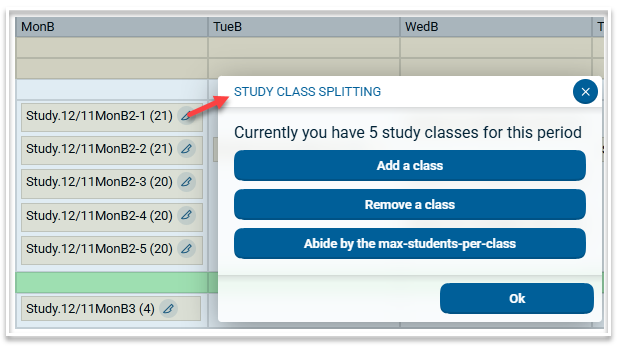
- When a period with a single study class has an additional study added, half of the students in the original class will be moved to the second class. Removing the additional class will move all students back into the original class.
- When removing a class from a period which has multiple study classes, the students from the removed class will be re-allocated evenly across the remaining classes.
Manual control over study class memberships
- To manage study class memberships manually, go to Students > Class lists and select the highest year level.
- The study classes will be listed at the end of the list in the second filter. Only those periods that have multiple study classes will be displayed.
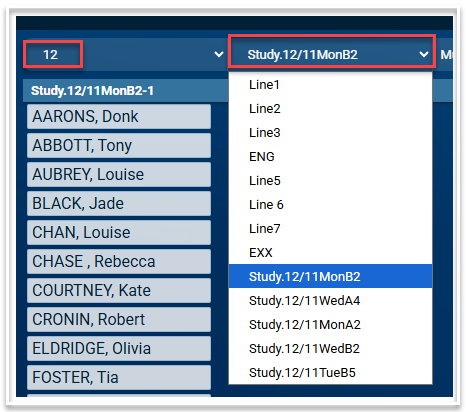
- Select the period in which you want to re-allocate students.
- Drag and drop students from one class to another to reallocate them.
- Because students are assigned automatically to a study class when they are not enrolled in any class in a period, they cannot be removed or cleared from Study classes. There is no 'Clear' button on Study Class lists for this reason, nor is there an 'Unassigned' column.
Publishing the Study Class Roster
While the Study Roster is under development, the 'Published' checkbox should be left unticked, as this will prevent teachers seeing study classes on their timetable. Once the roster is finalised, ticking the 'Published' checkbox will make study classes visible on teacher timetables.