
Student Data
Information related to students is stored in the Students table.
The Students Table
The Students table, under the Students menu, is where all student related data is entered. Information regarding each of the columns is displayed when the '?' in the column header is selected. Additionally, information regarding the whole screen is displayed using the F1 key on your keyboard.
- The table can be sorted by any column, and the column widths can be adjusted.
- To enter a new student, select the required year level and add the required information in the last row of the table.
- To delete a student, delete their code from the first column.
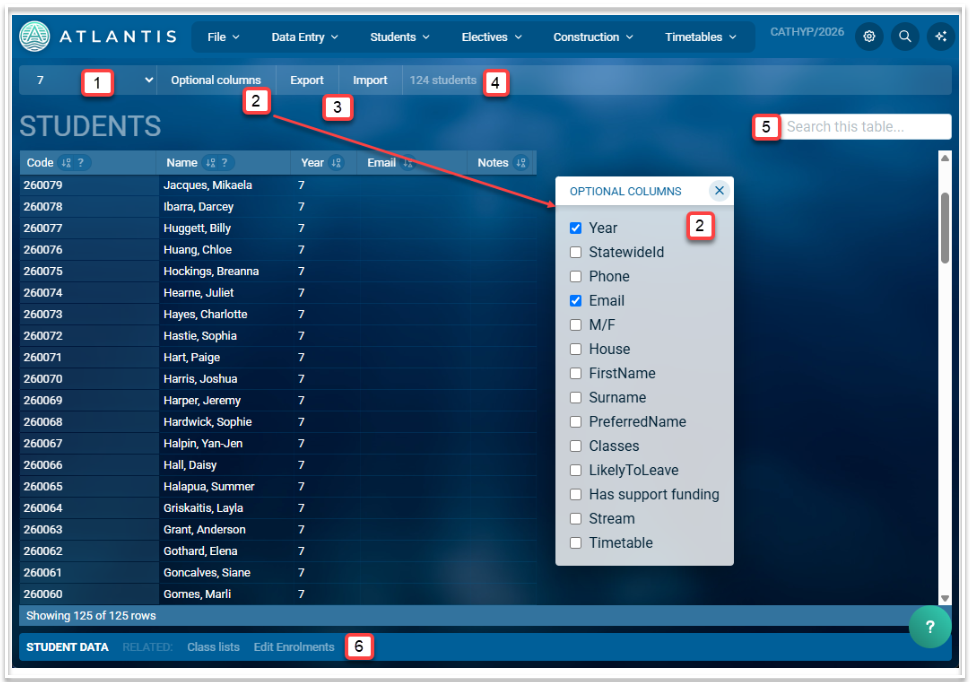
- The year level drop down contains all the year levels that have been added to the Year-levels table. You can select a single year level or 'All years'. When filtered to a year level, any students added to the table will automatically be added to the selected year level. When filtered to 'All years', any students added to the table will be placed in the 'NoStudents' year-level unless the optional 'Year' column has been enabled and a year level in that column is selected.
- Optional columns, as shown above, can be enabled if required. See below for an explanation of each column.
- Data can be exported as a .csv file or imported from a .csv or .xlsx file. To import data, select the 'Import' button then drag the file onto the screen, matching column headers where necessary. Use one of the import options (Update, All new entries or Merge with existing data) to complete the import.
- Information regarding the number of students is displayed for each year level, or for the whole school when 'All Years' is selected.
- The search bar can be used to search for any data in the displayed table.
- Related screens can be accessed by selecting a link in the footer.
Columns
- Code: A unique code which can be alphanumeric. Usually sourced from the school's Student Information System.
- Name: Full name in the format 'First Name Last Name' or 'Last Name, First Name'
- Year: The current year level of the student
- StatewideID: When the state or jurisdiction issues an identifying code which operates across schools, you can put it here. It's optional to use this field and Atlantis doesn't do much with it.
- Phone: Student phone number
- Email: Student email address
- M/F: Enter 'M' for male, 'F' for female, 'X' for both/neither/don't wish to say or leave it blank if it's unknown.
- House: Usually Sporting house. These need to be set up first, in DataEntry > Setup > Sporting Houses.
- FirstName: The first name derived from the full name
- Surname: The last name derived from the full name
- PreferredName: This will be the same as the first name but can be edited. Once edited, it will appear beside the full name in parentheses e.g. GRAY, Catherine (Cathy)
- Classes: The set of classes a student is enrolled in. These can be added manually, via an import, via Student Classes or via Edit Enrolments
- LikelyToLeave: Use Y to indicate if a student has informed you that they will not be returning
- Has support funding: Use Y to indicate a student receives support funding OR that you wish to have the student appear in the Learning Support roster.
- Stream: When subject selection uses streams, the stream a student has selected will appear in this column once Lines are committed.
- Notes: Free text field for storing any relevant information about the student.
- Timetable: The link in this column will display the student's cyclical timetable.