Edit Enrolments
Use Edit Enrolments to add or edit an individual student's class enrolments
Edit Enrolments, in the Students menu, allows quick editing of a student's enrolments. Based on the curriculum structure of the selected student's year level, it displays all of the classes available for that student.
The Edit Enrolments Screen
The display of classes in Edit Enrolments reflects the structure of the year level of the selected student. Here is an example of what may be displayed for a student in Year 9.
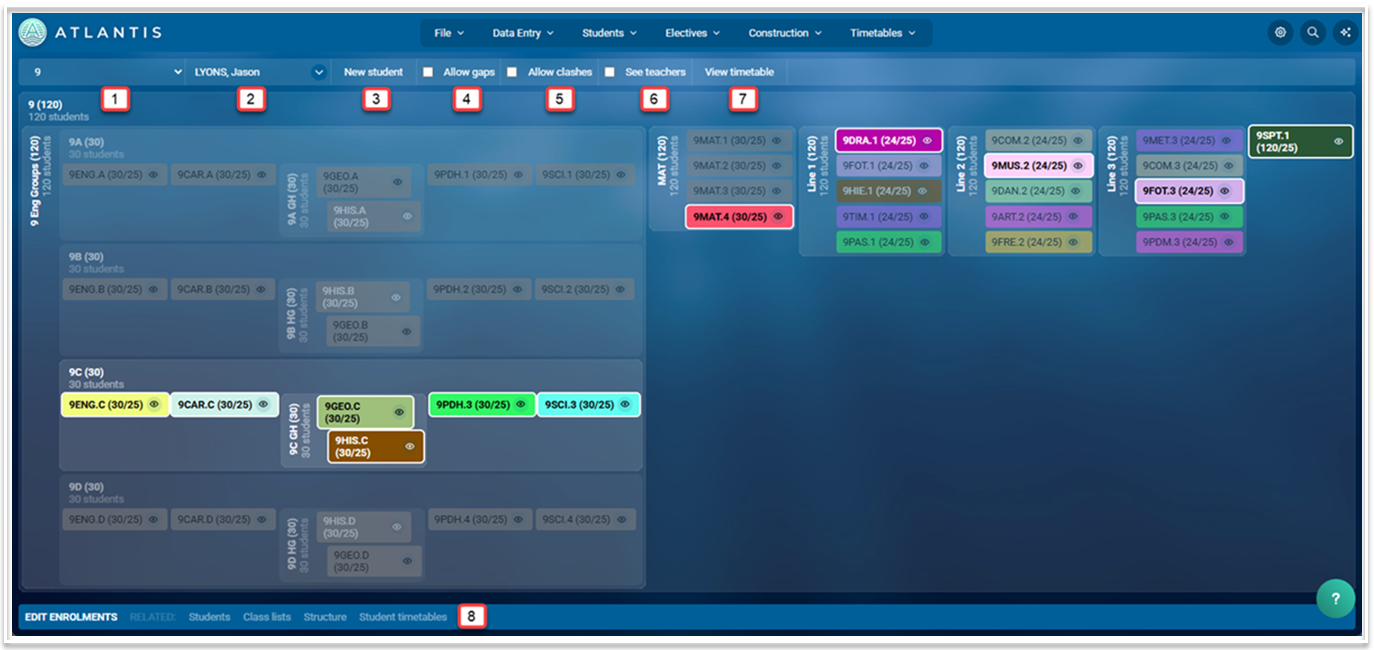
- To enter or edit a student's classes, go to Students > Edit Enrolments and select the relevant year level from the first drop-down.
- Select the student from the second drop-down. The selected student's current enrolments, if any, will be highlighted.
- Each class will display the number of enrolled students and the maximum number of students in the format 21/25. To see the list of students already enrolled in a class, select the 'eye' icon.
- If adding a new student, select 'New student'. You will need to enter their name and code and save before adding any classes.
- In most circumstances, a student will be enrolled in the complete set of classes within a horizontal structure, e.g. in all of Group C classes as shown in the example above. However, there may be a reason why a student should not be enrolled in every group class. The 'Allow gaps' button in the toolbar enables this. When the Allow gaps option is selected, one or more group classes can be deselected.
- In some circumstances, a student may need to be enrolled in more than one class in a vertical structure, for example, in a line of Distance Education classes that run offline. To enable this, select 'Allow clashes'
- Select 'View teachers' to see the name of the teachers assigned to each class.
- A student's timetable can be viewed by selecting 'View timetable'.
- Related screens can be accessed using the links in the footer.
Adding, Editing and Deleting Enrolments
- Clicking on a class will enrol the student in that class.
- Clicking on a class in which the student is enrolled will remove the student from that class.
- For horizontal structures, selecting one class will enrol the student in all classes within that horizontal structure.
- For vertical structures, when 'Allow clashes' is not selected, clicking on a new class will remove the student from the previous class.
- Class Lists and Student Data will be updated automatically with any changes made in Edit Enrolments.
Prior Enrolments
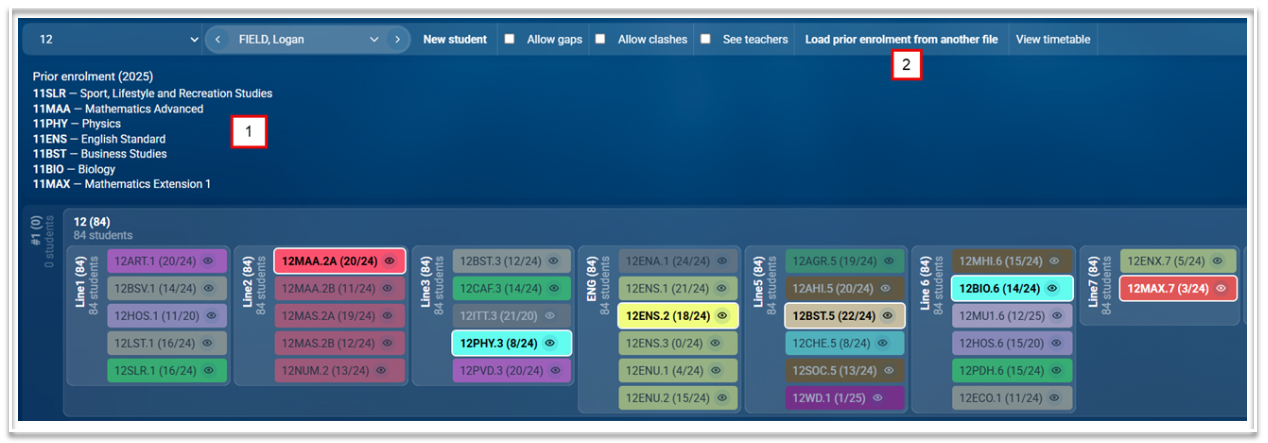
- When imported from a previous year's file, or if created when rolling over, a student's prior enrolments will be displayed above the grid containing their current enrolments.
- To load a previous year's enrolments, select the button in the tool bar. In the modal that opens, select the file and the year levels you wish to import, then select Ok.
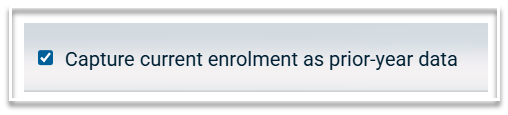
- When rolling over a file to a new academic year, an option is available to capture current enrolment as prior-year data.