
The Atlantis Production Environments
What is Failover?
In the unlikely event that one of the environments fails or goes offline, you can manually switch to the other one to continue working. This is termed 'failover'. We recommend that the URLs for both environments are bookmarked for this purpose.
Why does Atlantis favour Manual Failover?
Failover can be be an automatic process, as some companies choose, but we have chosen to do the failover manually and under the control of users for the following reasons:
- If you notice the outage before us then you can take immediate action to get working again.
- The components that other companies use to automatically detect if there is an outage are prone to false positives and false negatives (e.g. an environment has the software and responds to pings but has no data, or a network brownout has it continually switching from one environment to another in a constant state of transition) and this often results in no usable system.
- At Atlantis, a number of your peers are constantly using the other environment, which gives you a high degree of confidence that it is indeed ready for you to switch to if a need arises.
- We run slightly different software versions on the two environments. If you need an urgent bugfix then you’ll want to be on A2 but if you want to be insulated from newly introduced bugs then you’ll want to be on A1. Either way, you’ll appreciate being in control of this decision.
Which Server should be used?
We expect the majority of schools to be using A1 most of the time because it tends to be more stable. A minority of schools may prefer to use A2 so that they get bugfixes more quickly and also get early access to new features.
How do I switch environments?
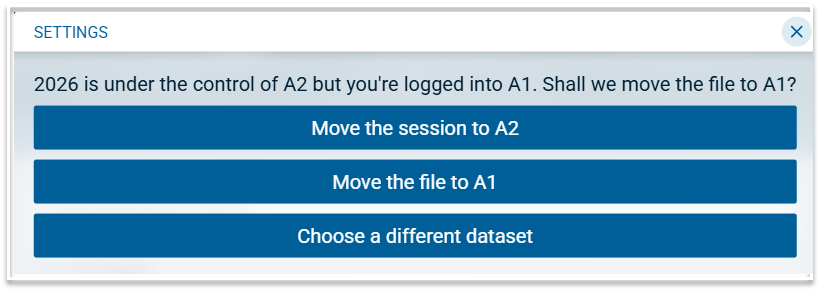
To switch to the alternate environment, use the relevant URL and login as usual. With the Timetable module you will be asked for confirmation when accessing a particular timetable version on the other environment. This is to avoid problems with long-running algorithms or short-running database locks.
The Covers product, which uses a different database technology, doesn’t have this issue. Therefore this confirmation is not required. Simply enter the URL of the required environment, login as usual and select the Covers module.